Before you start
interpretDB on Google Cloud Marketplace is a multi-tenant software-as-a-service product operated by Numberz.ai Inc. Google Cloud handles the purchase and billing. Numberz.ai Inc. runs the service, and each customer works in its own interpretDB organization.
- You need a Google Cloud billing account and permission to purchase Marketplace products for it.
- Use the same Google account for the purchase and for interpretDB registration. interpretDB checks that the two match.
- One Marketplace order is linked to one interpretDB organization.
1. Register with Numberz
- Find interpretDBIn the Google Cloud console, open Marketplace and search for interpretDB.
- Choose a plan and subscribeOpen the interpretDB listing, review the plans, select the plan you want and complete the purchase for your billing account.
- Select Register with NumberzAfter the purchase, select Register with Numberz on the order. Google sends you to the interpretDB “Set up your subscription” page.
- Finish the onboarding flowSign in and choose where the subscription goes, as described in the next two sections. The registration link is single-use and must be completed within 30 minutes.
2. Sign in
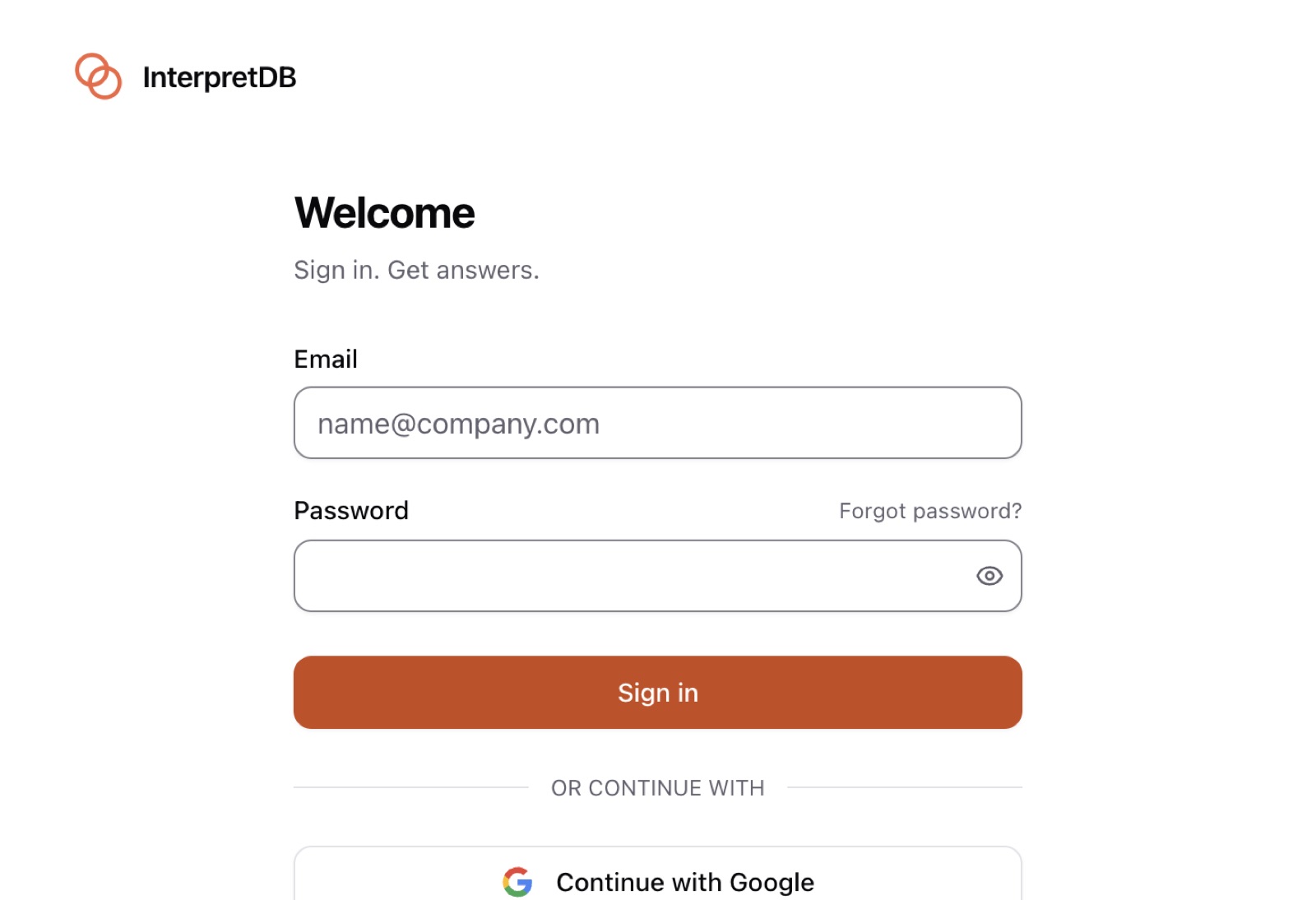
On the “Sign in to continue” page, select Continue with Google and sign in with the Google account you used to buy the subscription.
How account linking works
The registration link from Google identifies the Google account that made the purchase. interpretDB links your Marketplace account only when the Google account you sign in with is that same account. If they differ, nothing is linked and the page asks you to use the purchasing account.
Once linked, your Google Cloud Marketplace account is associated with exactly one interpretDB organization. Your subscription status and plan apply to that organization.
3. Create or link an organization
After you sign in, the page asks “Where should this subscription go?”
Create a new organization
Enter an organization name and select Create organization. You become the organization's administrator. If the name is already taken, a number is added; you can change the name later.
Link an existing organization
If you already use interpretDB, choose an organization you administer and select Link organization. No new organization is created. Only organization administrators can link an organization.
When the subscription already has an organization
If someone else in your company has already registered this subscription, the page tells you which organization it belongs to. Your sign-up is recorded and an administrator of that organization is notified; they need to invite you before you get access.
4. Invite users and assign roles
Access in interpretDB is organization-level: users see the data sources, documents and conversations of the organization they belong to, subject to the roles their administrators assign.
- Invite users. Organization administrators invite people from the Admin area. The interpretDB Standard plan has no limit on the number of users.
- Assign roles. Administrators can make other users organization administrators, organize users into departments and teams, and define roles at organization, department or team level.
5. Add MCP connections
interpretDB reads your data through MCP (Model Context Protocol) servers. In the app, each connection is called a source.
- Open SourcesOpen the account menu at the bottom of the left sidebar and, under More, select Sources.
- Add a sourceSelect Add Source. If your organization has no sources yet, the page shows Connect Your First Source.
- Enter the server detailsEnter a Name using only letters, numbers and hyphens. It must be unique in your organization and cannot be changed later. Description and Sample Queries are optional and help interpretDB understand the data. In Config, enter the server as JSON with its
url; remote servers using SSE or Streamable HTTP are supported. - Set up authenticationAdd any credentials the server needs as
headersin Config, for example anAuthorizationheader. If the server signs in with OAuth, select Authorize on the source's card after saving. - Save and test the connectionLeave Server Status on and select Save Configuration. interpretDB connects to the server when you save, and shows an error if it cannot. Then select Tools Test on the source's card to run one of its tools and check the result.
- Set access to the dataAfter a new source is saved, interpretDB reads and profiles its tables. Table permissions and record and field rules for each source are managed in Access.
- Edit, disable or remove a sourceOn the source's card, use Disable or Enable to switch it off or on, or edit it to change its settings. Only the person who added a source can delete it.
Adding and changing sources needs permission to manage Sources in your organization. If you do not see Sources, ask an organization administrator. The interpretDB Standard plan has no limit on the number of connected data sources.
6. Change plan or cancel in the Google Cloud console
Your interpretDB order, plan and billing are managed in the Google Cloud console, on the Marketplace Your orders page:
Google Cloud console → Marketplace → Your orders → select your billing account → interpretDB → Actions menu (⋮) → Change Plan or Cancel subscription
The direct link is console.cloud.google.com/marketplace/orders. To see orders you need the Billing Account Viewer role on the billing account; to change the plan you need Billing Account Administrator. Inside interpretDB, the app shows when a subscription is still being set up or has ended.
Plans
- interpretDB Standard: flat fee, billed monthly or for a one-year term. No limit on users or connected data sources.
Current prices are shown on the interpretDB listing in Google Cloud Marketplace.
Change plan
- Open Your ordersIn the Google Cloud console, go to Marketplace → Your orders and select the billing account used for the purchase.
- Open the actions menuFind interpretDB in the list and open its actions menu (⋮, “Actions available to manage your orders”).
- Select Change PlanChoose the new plan (monthly or one-year billing), review the terms and select Continue. Google decides whether the change applies at once or at the end of the current term.
Switching between monthly and one-year billing changes only the billing period. Your organization, users and data stay as they are. interpretDB picks up the change automatically once Google confirms it.
Cancel
- Open Your ordersIn the Google Cloud console, go to Marketplace → Your orders and select the billing account linked to the purchase.
- Open the actions menuFind interpretDB and open its actions menu (⋮).
- Select Cancel subscriptionGoogle may label this Cancel purchase. To stop the next renewal only, select Cancel auto-renewal instead.
Google ends the subscription at the end of the current subscription period, and billing continues until then. Your organization keeps full access until the cancellation takes effect. See the next section for what happens to your organization and data after that.
Billing
Google Cloud bills your subscription through your Google Cloud billing account. Invoices, payment methods and billing questions are handled in Google Cloud Billing.
7. Cancellation and data retention
Data retention policy
- Read-only for 30 days. When a cancellation takes effect, your organization stays available in read-only mode for 30 days. You can read past conversations and reports, but you cannot ask new questions, add data sources or invite people. A banner in the app shows the date your data will be deleted.
- Then deleted. When the 30 days end, the organization's data is deleted, including data-source connections and credentials, uploaded documents, search indexes and conversations.
- Renewing restores access. If you renew, or the cancellation is reversed, before that date, full access returns and nothing is deleted.
- Account deletion. If your Google Cloud Marketplace account is deleted, the linked organization's data is deleted immediately, without the 30-day read-only period.
- Export first. Export anything you need before the deletion date.
8. Troubleshooting
Why: The registration link from Google is single-use and short-lived. Sign-up must be finished within 30 minutes.
What to do: Return to Google Cloud Marketplace, open your interpretDB order and select Register with Numberz again.
Why: You signed in with a different Google account from the one that made the purchase.
What to do: Select Use a different Google account and sign in with the purchasing account.
Why: Your Google Cloud billing account's subscription is already linked to an interpretDB organization.
What to do: Ask one of the administrators named on the page to invite you to that organization.
Why: Only an organization administrator can link an existing organization to a subscription.
What to do: Ask an administrator of that organization to complete the registration, or create a new organization instead.
Why: Google has not yet confirmed the order, or confirmation is being retried.
What to do: Setup usually takes a few minutes. Use Check again. If it persists for more than an hour, contact support.
Why: interpretDB connects to the server when you save a source, and could not reach it: the URL is wrong, the server is down or not reachable from the internet, or it rejected the credentials.
What to do: Check the url and headers in Config, make sure the server is running and publicly reachable, then select Save Configuration again.
Why: Another source in your organization already uses that name. Names must be unique within an organization.
What to do: Enter a different Name.
Why: The source name contains spaces or other characters.
What to do: Use only letters, numbers and hyphens, for example sales-warehouse.
Why: Your role does not include managing Sources in this organization.
What to do: Ask an organization administrator to add the source or to give you permission.
Why: The organization's Google Cloud Marketplace subscription is no longer active.
What to do: Renew in Google Cloud Marketplace before the deletion date to restore full access.
Get help
For registration, account linking, organization access or subscription questions, email support@numberzinc.com with your organization name and, if you have it, your Google Cloud Marketplace order ID. Do not send passwords or credentials. See the support page for details.
Billing and payment questions are handled by Google Cloud Billing.